How to Add a User to Google Business Profile in 2026
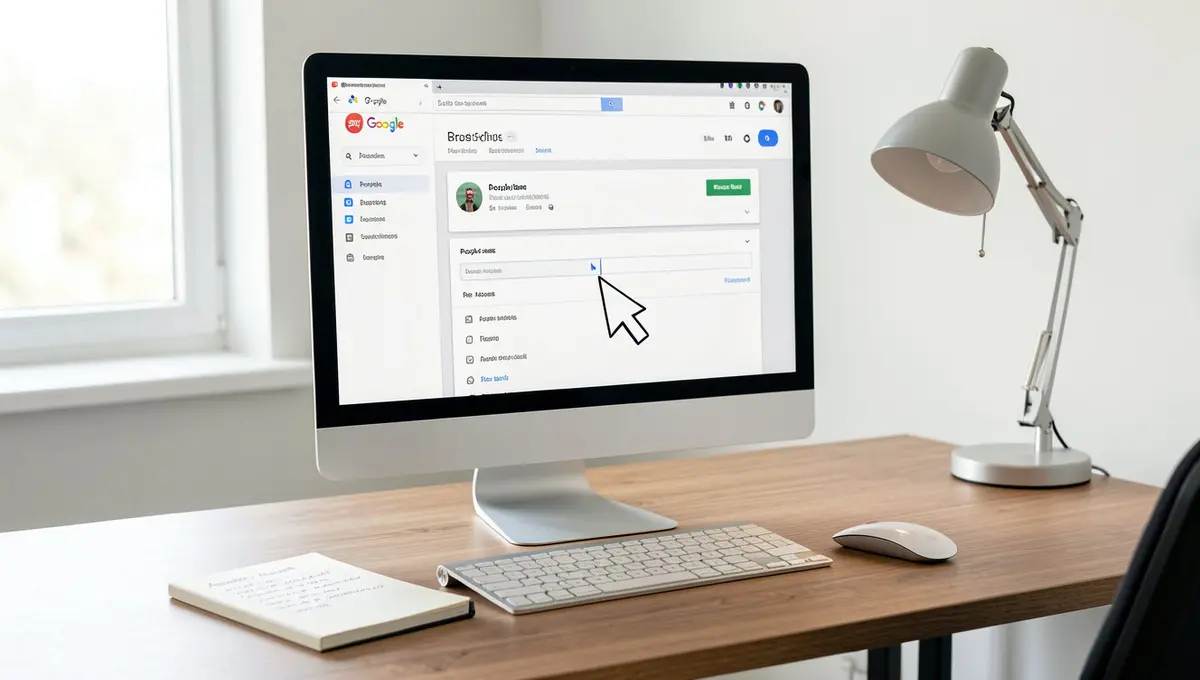
The short answer: Adding a user to Google Business Profile takes about two minutes through the People and access menu in your profile settings. You sign in at business.google.com, handle to Business Profile settings, click Add, enter the person's email, assign them Owner or Manager access, and send the invite. Three variables move the needle: choosing the right role for each user, using Google-based email addresses, and confirming the invitee accepts before access goes live. According to Google, a Business Profile can have multiple owners but only one primary owner. Your Google Business Profile drives local visibility, controls what customers see before they call, and feeds data into Google Maps, Search, and AI Overviews, which is why understanding Perplexity SEO matters for businesses that want citations in AI-generated answers.
Most business owners handle their Google Business Profile alone until something breaks, someone leaves, or growth forces delegation. Then the scramble starts. Who needs access? What can they change? How do you add them without handing over the keys to everything? The mechanics of how to add user to Google Business Profile are simple, but the stakes are higher than most people realize. Your Google Business Profile drives local visibility, controls what customers see before they call, and feeds data into Google Maps, Search, and AI Overviews. Mismanaged access means outdated hours, unanswered reviews, or worse, locked-out ownership disputes that take weeks to resolve. This guide walks through the exact process to add users, explains the difference between Owner and Manager roles, and covers the access-management decisions that prevent problems before they start. You will learn how to invite collaborators, assign the right permissions, troubleshoot common invite failures, and audit access as your team changes.What a Google Business Profile User Is and Why It Matters
A Google Business Profile user is anyone with permission to view, edit, or manage your business listing on Google. This includes updating business information, posting updates, responding to reviews, uploading photos, and reading performance insights. Access is granted through role-based permissions tied to a Google account. According to Google, a Business Profile can have multiple owners but only one primary owner. The primary owner is the first person who verified the listing or the account that currently holds ultimate control. Additional owners and managers can be added to share the workload, but each role has different capabilities.Owner vs Manager: What Each Role Can Actually Do
Owners have full control. They can edit all business information, add or remove users, change roles, delete the profile, and transfer primary ownership. If someone has Owner access, they can do anything to the listing, including locking you out if things go sideways. Managers can handle daily operations but cannot add or remove users. According to Google, Managers can edit business details, respond to reviews, create posts, view insights, and manage messaging, but they cannot change who has access. This makes Manager the safer default for employees, contractors, and agencies. The role you assign determines risk. An employee who only needs to post updates does not need Owner access. An agency managing your local SEO does not need the ability to delete your profile. Most collaborators should be Managers unless they genuinely need user-management powers.When You Need to Add Users (and When You Should Not)
Add users when delegation improves speed or coverage. A second location manager who can update hours during a holiday. A marketing coordinator who posts weekly updates. An agency that optimizes your listing and monitors reviews. These are valid reasons to grant access. Do not add users just because someone asked. Every additional account increases the chance of accidental edits, conflicting changes, or security issues. If someone only needs to see performance data once a month, export a report instead of granting permanent access. If a contractor finishes a project, remove them immediately. Access should match responsibility. If the person is not accountable for the listing's performance, they probably do not need access.How to Add User to Google Business Profile: The Step-by-Step Process
The current process to add user to Google Business Profile happens through the People and access interface in your profile settings. Google updated this workflow in 2024, moving away from the older "Users" menu. If you are following a guide that references "Users" instead of "People and access," it is outdated. According to the Google Community Guide, the process breaks into nine steps from sign-in to invite acceptance. The core flow is: sign in, select your business, open settings, handle to People and access, click Add, enter the email, assign a role, and send the invite. The invitee must accept before access goes live.Desktop Walkthrough: Adding a User from business.google.com
Sign in to business.google.com using the Google account that owns or manages the profile. If you manage multiple locations, select the specific business you want to grant access to. The dashboard shows all listings tied to your account, click the one you need. Click the menu icon (three horizontal lines) in the top left, then select Business Profile settings. Scroll to the People and access section. This is where all current users are listed, along with their roles. Click the Add button. A dialog box appears asking for the new user's email address. Enter the email tied to their Google account. If they do not have a Google account, they will need to create one before they can accept the invite. Choose Owner or Manager from the role dropdown. Owner gives full control including the ability to add and remove users. Manager allows daily operations but blocks user management. Click Invite. Google sends an email to the address you entered. The recipient must click the link in that email and accept the invitation. Until they accept, they will not appear as an active user. Check back in a day or two to confirm they completed the process.Mobile Workflow: Adding Users from the Google Business Profile App
The mobile app follows a similar flow but with a condensed interface. Open the Google Business Profile app and sign in. Tap the business you want to manage if you have multiple listings. Tap the menu icon, then tap Settings. Scroll to People and access. Tap Add, enter the user's email, select their role, and tap Invite. The invite is sent immediately, and the recipient must accept through the email link. Mobile access is useful for quick invites, but desktop offers better visibility into current users and role assignments. If you are managing access for multiple locations or auditing who has access, use the desktop interface.Choosing the Right Role: Owner or Manager
The role you assign determines what someone can change, who they can add, and whether they can lock you out. This decision should be deliberate, not default. According to Google, Managers can handle most daily tasks but cannot add or remove users. This makes Manager the right choice for employees who update the listing, respond to reviews, or post content. They get the access they need without the risk of accidentally deleting the profile or inviting unauthorized users.When to Assign Manager Access
Manager access works for anyone who needs operational control but not governance control. A store manager who updates hours during holidays. A social media coordinator who posts weekly updates. An agency that optimizes your listing and responds to reviews. These roles need editing power, not user-management power. Manager is also the safest choice for temporary collaborators. If you hire a consultant for a three-month project, Manager access gives them what they need without the ability to add their own team or remove you. When the project ends, you revoke access without worrying about lingering permissions. Most businesses should default to Manager unless there is a specific reason to grant Owner access. If you cannot articulate why someone needs Owner permissions, they probably do not.When Owner Access Is Necessary
Owner access is necessary when someone needs to manage the user list, transfer ownership, or delete the profile. A business partner who shares responsibility for the listing. A new primary owner after you sell the business. An internal admin who manages access for a multi-location company. Owner access should be limited to people with long-term accountability. If they leave the company, you will need to remove them and potentially transfer primary ownership. That process is smoother when only a few people have Owner access. Never assign Owner access to an agency, contractor, or vendor unless you have a legal agreement that defines ownership and transfer terms. If the relationship ends badly, an Owner can lock you out of your own listing.Troubleshooting Common Invite Problems
Invites fail for predictable reasons: wrong email, non-Google account, expired invite, or permission conflicts. Most issues resolve in minutes once you identify the cause. According to Victorious, the invitee must accept the invitation before gaining access. If they do not see the email, check spam folders first. Google sends the invite from a noreply address, which some email filters block.The Invitee Does Not See the Email
If the recipient does not receive the invite within a few minutes, confirm you entered the correct email address. Check for typos, extra spaces, or autocorrect errors. If the email is correct, ask them to check spam and promotions folders. If the email still does not appear, resend the invite. Go back to People and access, find the pending invite, and click Resend. Google allows you to resend invites multiple times without creating duplicates. If resending does not work, the issue is usually account-related. The email address might not be tied to a Google account, or the recipient's account settings might block invitations. Ask them to sign in to their Google account and check notification settings.The Invite Expired or Was Declined
Invites expire after a set period, typically 30 days. If the recipient does not accept within that window, the invite becomes invalid. You will need to send a new one. If the invitee accidentally declined the invite, they cannot undo it. You must send a fresh invite. Go to People and access, click Add, and re-enter their email and role. If someone repeatedly cannot accept invites, the problem is usually on their end. They might be using a Google Workspace account with restricted permissions, or their admin might have disabled external sharing. Ask them to contact their IT team or use a personal Google account instead.See How Your Business Shows Up in AI Search
Get a free AI visibility scan. See exactly where you rank on ChatGPT, Perplexity, and Google AI, and what to do about it. Get Your Free Scan. Before you can add users, you need to find your Google Business Profile in the system if you have not accessed it recently.
Managing Access Over Time: Audits, Role Changes, and Removals
Access management does not end when the invite is accepted. Teams change, roles shift, agencies rotate, and employees leave. Regular audits prevent unauthorized access and reduce security risk. Check your People and access list every quarter. Look for users who no longer need access, former employees, finished contractors, old agency partners. Remove anyone who is not actively working on the listing.How to Change Someone's Role
If someone's responsibilities change, you can update their role without removing and re-adding them. Go to People and access, find the user, click the three-dot menu next to their name, and select Edit access. Change their role from Owner to Manager or vice versa, then save. Role changes take effect immediately. The user does not need to accept a new invite or re-authenticate. Their existing access updates to the new permission level. Downgrading an Owner to Manager is a common move when an employee transitions from leadership to operational work. Upgrading a Manager to Owner should be rare and deliberate.How to Remove Access Completely
To remove someone, go to People and access, find the user, click the three-dot menu, and select Remove access. Confirm the removal. The user loses access immediately and will not receive a notification. Remove access as soon as someone leaves the company, finishes a project, or no longer needs the listing. Do not wait until the next audit. Immediate removal reduces the window for accidental or malicious changes. If you are removing the only other Owner, make sure you have Owner access first. You cannot remove yourself if you are the primary owner. If you need to transfer primary ownership, contact Google support.Multi-Location and Agency Access: Scaling Beyond One Listing
Managing access for a single location is straightforward. Managing access for ten, fifty, or five hundred locations requires a different approach. Multi-location businesses need centralized control, role templates, and access policies that scale. If you operate multiple locations, assign access at the individual location level, not the account level. This lets you give a regional manager access to their locations without exposing others. It also reduces risk, if one location's access is compromised, the others remain secure.Agency Access: What to Grant and What to Withhold
Agencies often request Owner access to "manage everything." That is almost never necessary. Manager access gives agencies everything they need: editing business details, posting updates, responding to reviews, and viewing insights. It does not give them the ability to add their own users, remove you, or delete the profile. Grant agencies Manager access by default. If they push back, ask why they need Owner permissions. Legitimate reasons are rare. Most agencies want Owner access for convenience, not necessity. If an agency must have Owner access for a specific technical reason, document it in your contract. Include terms for access removal, data ownership, and what happens if the relationship ends. Never let an agency be the primary owner.Centralized Access Management for Multi-Location Businesses
Businesses with dozens of locations should designate one person as the access administrator. This person handles all user invites, role changes, and removals. Centralized management prevents duplicate invites, orphaned accounts, and conflicting permissions. Use a shared spreadsheet or access log to track who has access to which locations and why. Include columns for name, email, role, location, date added, and reason for access. Update the log every time you add or remove someone. Audit the log quarterly. Remove users who no longer need access, downgrade Owners who should be Managers, and consolidate redundant permissions. Access creep is real, without regular audits, you will end up with dozens of unnecessary users.The Bottom Line
Adding a user to Google Business Profile is a two-minute task with long-term consequences. The process itself is simple: sign in to business.google.com, work through to People and access, click Add, enter an email, assign a role, and send the invite. The decision about who gets access and what role they receive determines whether your listing stays secure and well-managed. Default to Manager access unless someone genuinely needs user-management powers. Audit your access list quarterly. Remove users immediately when they leave or finish a project. Treat your Google Business Profile like the high-value asset it is, because local visibility, review management, and AI search presence all flow through this one listing.| Factor | What it is | Impact |
|---|---|---|
| Role assignment | Choosing Owner vs Manager based on actual need | High |
| Email accuracy | Using correct Google-linked email for invites | High |
| Invite acceptance | Confirming the recipient completes the process | High |
| Access audits | Quarterly review of who has access and why | Medium |
| Immediate removal | Revoking access when someone leaves or finishes | High |
Frequently Asked Questions
How do I add a user to my Google Business Profile?
Sign in to business.google.com, select your business, go to Business Profile settings, click People and access, then click Add. Enter the user's email, assign them Owner or Manager, and send the invite. They must accept via email before access activates. If someone has Owner access, they can do anything to the listing, including locking you out or choosing to remove Google Business Profile entirely if things go sideways. The current process to add user to Google Business Profile happens through the People and access interface in your profile settings, which requires you to first access your Google Business Profile through the correct account.
What is the difference between Owner and Manager on Google Business Profile?
Owners can edit everything, add or remove users, and delete the profile. Managers can edit business details, post updates, and respond to reviews, but cannot manage user access. Manager is safer for most collaborators. Mobile access is useful for quick invites, but desktop offers better visibility into current users and role assignments, though the Google Business Profile app provides a streamlined interface for on-the-go management.
Can I add more than one Owner to my Google Business Profile?
Yes. According to Google, a Business Profile can have multiple owners but only one primary owner. Additional owners have full control except for transferring primary ownership, which requires contacting Google support.
What happens if the person I invited does not accept the invite?
The invite remains pending until they accept or it expires after about 30 days. Check that you used the correct email, ask them to check spam folders, and resend the invite if needed. They must have a Google account to accept.
Can I remove someone's access to my Google Business Profile later?
Yes. Go to People and access, find the user, click the three-dot menu, and select Remove access. They lose access immediately. Remove users as soon as they no longer need the listing to reduce security risk.