How to Access Your Google Business Profile in 2026: The Complete Access Guide
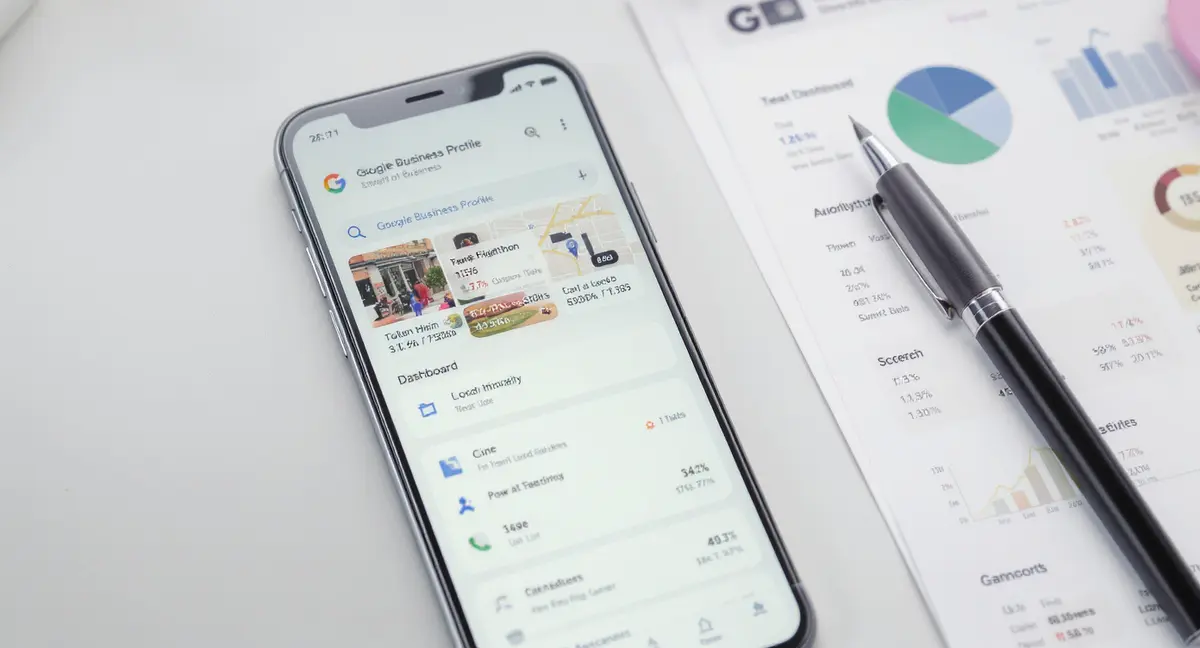
If you're asking yourself "how do I access my Google Business Profile," you're not alone. Every month, thousands of business owners search for their GBP dashboard, only to find themselves clicking through confusing menus, outdated URLs, and support pages that assume you already know where everything is. The truth is, Google has changed how you access your Google Business Profile multiple times over the past few years, and what worked in 2023 doesn't always work now.
Your Google Business Profile is the single most important piece of local search real estate you own. It controls how your business appears in Google Search, Google Maps, and increasingly, in AI-generated results when someone asks ChatGPT or Perplexity for local recommendations. According to Google, 76% of people who search for something nearby visit a business within a day. If you can't access your profile to update hours, respond to reviews, or post updates, you're invisible to that traffic.
This guide walks you through every access method, troubleshoots the most common login issues, and shows you how to maintain control over your profile whether you manage one location or fifty. You'll learn the desktop and mobile paths, how to handle shared access with team members or agencies, and what to do when Google locks you out.
What Google Business Profile Is and Why Access Matters
Google Business Profile is the free tool that controls your business listing across Google Search and Google Maps. When someone searches for your business name, your category plus location, or asks Google "near me" questions, your GBP determines what they see: your hours, phone number, photos, reviews, and whether you show up in the local pack at all.
Understanding how to access your Google Business Profile starts with recognizing what it controls. Your profile isn't just a directory listing. It's the interface between your business and local search demand. According to BrightEdge, organic search drives 53% of all trackable website traffic, and local searches represent a meaningful portion of that. If your GBP is incomplete, outdated, or managed by someone who no longer works for you, you're losing calls, visits, and revenue to competitors who keep theirs current.
The Local Search Visibility Problem
Most business owners don't realize their GBP exists until a customer complains about wrong hours or they see a competitor ranking above them. By that point, they've already lost months of visibility. Whitespark's 2024 local ranking factors study found that GBP optimization is the number one factor in local pack rankings. Businesses with complete profiles are 70% more likely to attract location visits, according to Google's own data.
Check out the structural issue: Google creates profiles automatically when it detects a business. You might already have a profile you've never claimed. Someone else, a former employee, a well-meaning customer, or even a competitor, might have claimed it. Until you verify ownership and access your Google Business Profile, you don't control what the public sees.
What Happens When You Lose Access
Access problems compound fast. If you can't log in to respond to a negative review, that review sits at the top of your profile indefinitely. If your hours change and you can't update them, Google shows the wrong information and customers show up when you're closed. If a seasonal promotion ends and you can't remove the post, you're advertising an offer you no longer honor.
Consider a service business that changed ownership in 2026. The previous owner had verified the GBP using their personal Gmail account. When they sold the business, they didn't transfer profile ownership. The new owner couldn't access the listing, couldn't update the phone number, and couldn't respond to reviews. It took three weeks and a manual verification process to regain control. During that time, calls went to a disconnected number.
How Do I Access My Google Business Profile on Desktop
The most direct way to access your Google Business Profile on desktop is to visit business.google.com while logged into the Google Account that owns or manages the profile. This is the Business Profile Manager, Google's central dashboard for all your listings. If you manage multiple locations, this is where you'll see them all in one interface. Once you regain access, your first priority should be ensuring your profile complies with Google Business Profile guidelines to avoid suspension or removal.
Take a look at the step-by-step process for desktop access. First, open a browser and go to business.google.com. Make sure you're signed into the correct Google Account. If you manage profiles for multiple businesses or clients, double-check which account is active in the top-right corner. Once you're logged in, you'll see a list of all business profiles associated with that account. Click on the profile you want to manage.
Accessing Through Google Search
There's a faster method most people don't know about. When you're logged into your Google Account, search for your business name in Google Search. If you're an owner or manager of that profile, Google displays an "Own this business?" or "Manage now" button directly in the search results. Click it, and you're taken straight into editing mode without navigating to Business Profile Manager.
This in-SERP access method works because Google recognizes your logged-in account and matches it to the profile's ownership records. It's the quickest way to make a fast update, like changing your hours for a holiday or posting a same-day announcement. You can edit your business information, respond to reviews, and view insights without leaving the search results page.
Using Google Maps on Desktop
You can also access your Google Business Profile through Google Maps on desktop. Go to maps.google.com, search for your business, and click on your listing. If you're logged in as an owner or manager, you'll see a "Manage this profile" link in the business information panel. Click it to open the editing interface.
This method is less common, but it's useful if you're already working in Maps, checking competitor locations, or verifying how your profile appears to customers. The functionality is identical to Business Profile Manager, just accessed through a different entry point. All three desktop methods, business.google.com, Google Search, and Google Maps, lead to the same backend dashboard.
How Do I Access My Google Business Profile on Mobile
Mobile access works differently than desktop, and for most business owners, it's the more convenient option. You don't access your Google Business Profile through a dedicated GBP app anymore. Google retired the standalone Google My Business app in 2022. Instead, you manage your profile directly through the Google Maps app on iOS or Android.
To access your profile on mobile, open the Google Maps app and make sure you're signed into the Google Account that manages your business. Tap your profile icon in the top-right corner, then tap "Business Profile" from the menu. If you manage multiple locations, you'll see a list. Select the one you want to edit. From there, you can update information, respond to reviews, post updates, and view performance insights.
Mobile Editing and Performance Monitoring
The mobile interface is optimized for quick updates and monitoring. You can upload photos directly from your phone's camera, respond to reviews with voice-to-text, and check how many people called or visited your website today. The Performance tab shows discovery metrics: how many people found your profile through direct searches versus category searches, how many clicked for directions, and how many tapped your phone number.
According to Google, 46% of all searches have local intent, and the majority of those happen on mobile devices. That means your customers are finding you on their phones while they're out, making decisions in real time. Being able to access your Google Business Profile on mobile lets you respond to reviews during lunch, update your hours from the job site, or post a flash sale while you're standing in your store.
Push Notifications and Real-Time Updates
One advantage of mobile access is push notifications. When someone leaves a review, asks a question, or sends a message through your GBP, the Maps app can notify you immediately. You can respond within minutes instead of hours or days. Search Engine Journal reports that SEO leads have a 14.6% close rate compared to 1.7% for outbound leads. Fast response times to reviews and questions directly impact that conversion rate. After you've secured access and updated your core information, the next high-impact change is fixing your profile photo, which directly affects click-through rates in local search.
Mobile access also makes it easier to keep your profile current. If you're closing early for weather, you can update your hours from your phone in under a minute. If you're running a same-day promotion, you can post it while you're still setting up the signage. The friction between "I should update this" and actually doing it drops to near zero when the tool is in your pocket.
Managing Multiple Locations and Shared Access
If you operate more than one location, knowing how to access your Google Business Profile becomes more complex. Google's Business Profile Manager lets you switch between locations, but each profile must be individually verified and managed. You'll see all your locations in a list view when you log into business.google.com. Click on any location to access its specific dashboard.
For businesses with 10+ locations, Google offers bulk management tools. You can download performance data for all locations at once, upload bulk edits via spreadsheet, and set up location groups for regional reporting. This is critical for franchises, multi-location retailers, and service businesses operating across multiple cities. Without centralized access, you're managing each location as if it were a separate business, which doesn't scale.
User Roles and Permissions
Google Business Profile supports multiple user roles: Owner, Manager, and Site Manager. Owners have full control, including the ability to add or remove other users and delete the profile. Managers can edit information, respond to reviews, and view insights, but they can't manage user access. Site Managers have the most limited permissions, typically used for employees who need to post updates but shouldn't change core business information.
What matters is why this matters: if your marketing agency, VA, or social media manager needs access to post updates or respond to reviews, you don't have to give them your Google Account password. You add them as a Manager through Business Profile Manager. Go to your profile, click "Users" in the left menu, and invite them by email. They'll receive an invitation and can access the profile through their own Google Account.
Agency and Third-Party Access
Many businesses hire agencies or consultants to manage their GBP. The agency should never ask for your Google Account credentials. Instead, you add their team members as Managers. This preserves your ownership and lets you revoke access instantly if you switch providers. It also creates an audit trail: you can see who made what changes and when.
Some businesses use platforms like Strategyc's Content & Visibility Engine to manage local content and visibility infrastructure without relying on ongoing agency access. These installed systems handle content publishing, local optimization, and performance tracking as owned infrastructure rather than rented services. The business retains full GBP ownership while the system automates the publishing and optimization work that agencies typically charge monthly retainers to perform.
See How Your Business Shows Up in AI Search
Get a free AI visibility scan. See exactly where you rank on ChatGPT, Perplexity, and Google AI, and what to do about it. Get Your Free Scan.
Troubleshooting Access Issues and Verification Problems
The most common question after "how do I access my Google Business Profile" is "why can't I access my Google Business Profile." Access problems fall into a few categories: you never verified ownership, someone else verified it first, your verification expired, or Google suspended your profile. Each has a different fix.
If you search for your business and see a listing, but when you try to claim it Google says it's already verified, someone else claimed it. This happens when a previous owner, employee, or agency verified the profile and didn't transfer ownership. To resolve it, you need to request access. Go to business.google.com, search for your business, and click "Request access." Google will notify the current owner, who can approve or deny your request. If they don't respond within seven days, you can escalate through Google Support with proof of business ownership like a utility bill or business license. The visual identity you present through your profile picture influences whether searchers choose your business over competitors in the same local pack.
Verification and Re-Verification Requirements
Even if you've verified your profile before, Google sometimes requires re-verification. This happens after major edits, ownership changes, or if Google detects suspicious activity. Verification methods include postcard (Google mails a code to your business address), phone (automated call or text), email (if Google has an email on file for your business), and video verification (you record a walkthrough of your business).
Postcard verification is the most common and the slowest. It takes 5-14 days for the postcard to arrive. During that time, you have limited editing ability. You can add basic information, but you can't publish posts, respond to reviews, or appear in Google Maps until you enter the verification code. If the postcard doesn't arrive, you can request a new one, but you have to wait another two weeks.
Suspended or Disabled Profiles
If your profile was suspended, you'll see a notification when you try to access it. Google suspends profiles for guideline violations: fake addresses, keyword-stuffed business names, prohibited categories, or suspected spam. To reinstate a suspended profile, you need to fix the violation and request reinstatement through the Google Business Profile Help Center.
Common violations include using a virtual office or PO box as your address when you're not eligible for a service-area business designation, adding keywords to your business name (e.g., "Joe's Plumbing | Best Emergency Plumber in Austin"), or selecting categories that don't match what your business actually does. Fix the issue, submit a reinstatement request, and wait for Google's review. This can take 3-5 business days or longer if there's a backlog.
Using Insights, Performance Data, and Ongoing Maintenance
Once you know how to access your Google Business Profile, the next question is what to do with that access. The Performance and Insights tabs in Business Profile Manager show you how customers find and interact with your listing. You'll see how many people discovered your profile through direct searches (they searched your business name) versus discovery searches (they searched a category or service and found you).
Google also tracks actions: how many people clicked your phone number, requested directions, visited your website, or clicked through to your booking link. This data is critical for measuring local SEO ROI. If you're investing in local content, citations, or review generation, your GBP insights show whether those efforts are increasing discovery and driving actions. According to Firework's 2025 research, only 8% of marketers feel confident they can measure ROI from their marketing efforts. GBP insights give you concrete numbers.
What to Monitor and How Often
Log into your profile at least weekly. Check for new reviews and respond within 24-48 hours. Update your posts and offers monthly or whenever you have something newsworthy. Review your insights monthly to spot trends: are discovery searches increasing? Are people finding you through Maps more than Search? Are certain photos getting more views?
Set up a maintenance routine. Every Monday, check reviews. First Friday of the month, review insights and update posts. Quarterly, audit your business information for accuracy: hours, services, photos, business description. This routine takes 15-30 minutes per week and prevents the profile from going stale. Stale profiles lose ranking priority. Google rewards active, current listings with better visibility in local pack results.
Downloading and Analyzing Performance Reports
Business Profile Manager lets you download performance data as CSV files. This is useful for multi-location businesses that want to compare performance across regions, or for businesses that want to integrate GBP data into broader marketing dashboards. You can export data on searches, views, and actions for custom date ranges.
Analyzing this data over time reveals patterns. For example, a restaurant might see discovery searches spike every weekend, while a B2B service business might see direct searches increase after email campaigns. A home services company might notice that direction requests correlate with seasonal demand. These insights inform content strategy, ad spend, and operational planning. If you know Tuesday afternoons drive the most direction requests, you can staff accordingly.
The Bottom Line
Knowing how to access your Google Business Profile is the first step. Maintaining it is the ongoing work. Your profile is the bridge between local search demand and your business. When someone in your area searches for what you offer, your GBP determines whether you're visible, whether they trust you enough to click, and whether they take action.
The access methods are straightforward: business.google.com on desktop, the Google Maps app on mobile, or directly through Google Search when you're logged in. The complexity comes from verification, shared access, multi-location management, and troubleshooting when things break. Most businesses set up their profile once and forget about it until something goes wrong. That's a mistake. Active profiles with fresh content, fast review responses, and accurate information consistently outrank neglected ones.
Your Google Business Profile is infrastructure. Treat it like you treat your phone system or your website. Check it regularly, keep it current, and make sure the right people have access to manage it. The businesses that win local search in 2026 aren't the ones with the biggest ad budgets. They're the ones that show up consistently, answer questions, and make it easy for customers to choose them when the moment matters.
Frequently Asked Questions
How do I access my Google Business Profile if I forgot which Google Account owns it?
Search for your business name in Google while logged out. Click "Own this business?" and Google will show you the email address associated with the profile owner. If you no longer have access to that email, you'll need to request access or go through account recovery with Google Support using business ownership documentation.
Can I access my Google Business Profile without verifying it first?
You can claim an unverified profile and add basic information, but you cannot publish posts, respond to reviews, or appear in Google Maps until verification is complete. Verification is required for full access and visibility. Most businesses verify via postcard, which takes 5-14 days to arrive.
What happens if my agency or former employee still has access to my profile?
If you're the profile owner, log into Business Profile Manager, go to Users, and remove any users who should no longer have access. If someone else is the owner and won't transfer ownership, request access through business.google.com and escalate with Google Support if they don't respond within seven days.
How do I access performance data for multiple locations at once?
In Business Profile Manager, select multiple locations using the checkboxes, then click "Download performance data" from the Actions menu. You can export search, view, and action metrics for all selected locations as a single CSV file for custom date ranges and comparative analysis.
What does it take to maintain my Google Business Profile without relying on an agency?
You need weekly time to respond to reviews, monthly time to update posts and check insights, and quarterly time to audit information accuracy. Most businesses spend 15-30 minutes per week. The alternative is installing a content and visibility system that automates publishing and optimization while you retain full ownership and access.