Wordpress SEO for Beginners: Simple Steps to Rank
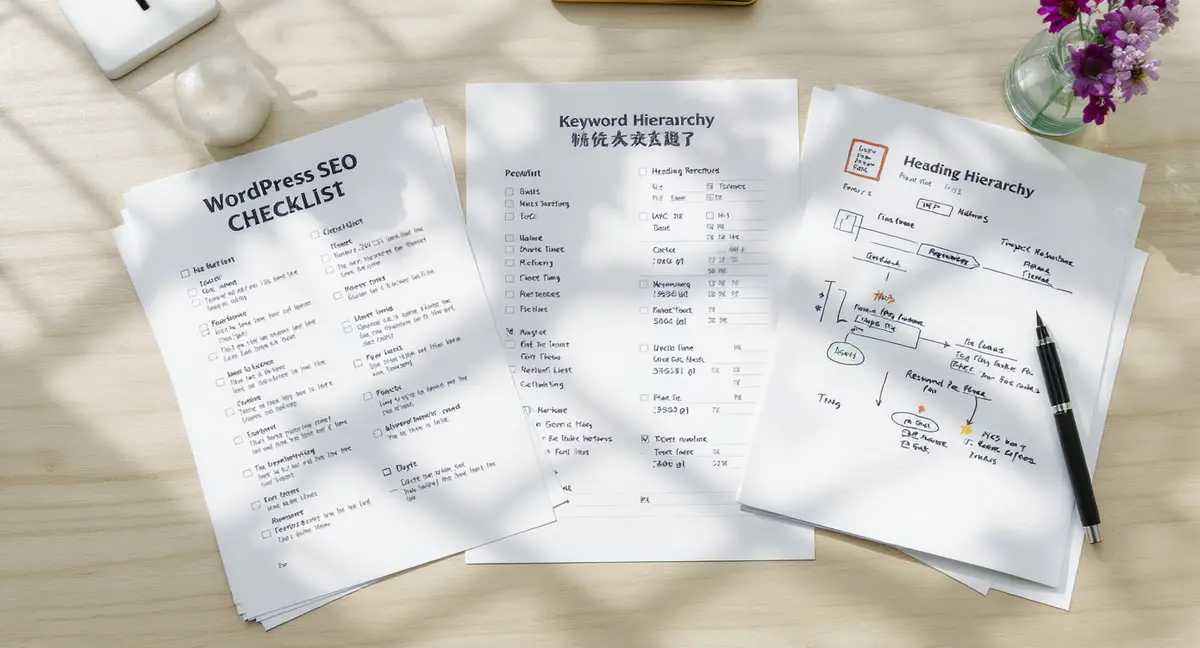
The short answer: WordPress SEO for beginners means optimizing your site's structure, content, and technical foundation so search engines understand and rank your pages. Beginners should focus on permalink settings, heading hierarchy, keyword-focused content, and image optimization. Success comes down to choosing the right topics, structuring content clearly, and building internal links. According to Google Search Central, proper heading structure helps search engines understand page hierarchy and improves accessibility. As AI-powered search platforms reshape how users find content, understanding Perplexity SEO becomes equally important for visibility beyond traditional Google results.
WordPress powers 43% of all websites, but most beginners publish content that never ranks. The platform handles some SEO automatically, but default settings leave critical visibility gaps. Search engines reward sites that make content easy to crawl, understand, and cite. WordPress SEO for beginners is not about mastering 50 tools or hiring specialists. It is about making deliberate structural choices that compound over time. The gap between a WordPress site that ranks and one that does not often comes down to five decisions: how you set permalinks, how you structure headings, whether you match search intent, how you link pages together, and whether you optimize images. Most beginners skip these steps because they seem technical. They are not. Each one takes minutes to implement and produces results for years. This article walks through the exact setup and content practices that move WordPress sites from invisible to competitive. You will see what to configure once, what to do with every post, and how to measure whether it is working. No jargon, no upsells, just the structural foundation that makes organic visibility possible.Why Most WordPress Sites Never Rank
WordPress installs with SEO-hostile defaults. Permalinks default to date-based URLs like `yoursite.com/?p=123`, which tell search engines nothing about page content. The block editor allows unlimited H1 tags, breaking heading hierarchy. Image file names like `IMG_4732.jpg` waste alt-text opportunities. These are not minor issues. They are structural defects that prevent crawlers from understanding what your pages are about. According to WordPress.com Support, meta descriptions should stay between 150 and 160 characters, but WordPress does not generate them automatically. That means every post you publish without a meta description hands Google a blank space where your pitch should be. Search engines fill that space by pulling random sentences from your content, often mid-paragraph fragments that do not make sense out of context.Default Settings That Kill Visibility
The WordPress default permalink structure uses post IDs instead of keywords. A URL like `yoursite.com/services/?p=847` tells a search engine nothing. A URL like `yoursite.com/services/wordpress-seo-beginners` tells the engine exactly what the page covers. Changing permalink structure after publishing breaks every link you have built, so beginners must fix this before publishing their first post. WordPress allows multiple H1 tags per page because the block editor treats headings as styling tools, not semantic structure. Google Search Central documentation confirms that one H1 and multiple H2/H3 headings help search engines understand page hierarchy. When you use three H1 tags because you like the font size, you confuse crawlers about which topic is primary.What Beginners Assume WordPress Handles Automatically
New users assume WordPress generates sitemaps, optimizes images, and creates meta descriptions. It does not. Core WordPress creates basic XML sitemaps as of version 5.5, but those sitemaps do not include images, categories, or custom post types unless you configure them. Image optimization requires manual alt text, file name editing, and compression before upload. Meta descriptions require either manual input or a plugin to generate them. WordPress SEO for beginners starts with recognizing that the platform gives you control, not automation. You own the infrastructure, but you must configure it. That is the advantage. Once you set it up correctly, every post you publish inherits the right structure without ongoing maintenance.How Do I Set Up WordPress for Search Visibility?
| Factor | What it is | Impact |
|---|---|---|
| Permalink structure | URL format that includes post title keywords | High, determines whether URLs communicate topic |
| Heading hierarchy | One H1, multiple H2/H3 in logical order | High, crawlers use this to understand content structure |
| Image file names and alt text | Descriptive names and accessibility text for every image | Medium, improves image search and accessibility scores |
| Internal linking | Links between related posts and pages on your site | High, shows topical relationships and distributes authority |
| Meta descriptions | 150-160 character summaries for search results | Medium, does not affect rankings but improves click-through |
Connecting Your Site to Search Engines
Submit your site to Google Search Console and Bing Webmaster Tools. Both are free. Both require you to verify ownership by adding a meta tag or uploading an HTML file. Once verified, submit your XML sitemap URL. This tells search engines which pages exist and when they were last updated. Without this step, search engines eventually find your site, but it takes weeks or months instead of days. Search Console shows which queries trigger your pages, which pages get clicks, and which pages have indexing errors. Check it weekly for the first month, then monthly after that. If a page is not indexed, Search Console tells you why: crawl error, duplicate content, noindex tag, or manual action. Fix the issue and request re-indexing.Choosing an SEO Plugin and Configuring It
WordPress SEO for beginners does not require expensive tools. A free SEO plugin handles 90% of what you need: title tags, meta descriptions, XML sitemaps, breadcrumb markup, and Open Graph tags for social sharing. Configure the plugin once by setting default title formats like `%post_title% | %site_name%` and enabling XML sitemaps for posts, pages, and categories. Do not install multiple SEO plugins. They conflict. One plugin controls title tags and meta. Use it for every post. If the plugin includes features you do not understand, ignore them. You need title control, meta fields, and sitemaps. Everything else is optional until you have 50+ published posts.What Keywords Should I Target as a Beginner?
Keyword research for beginners means finding search phrases you can actually rank for. Avoid broad single-word terms like "marketing" or "plumbing." Those are dominated by sites with thousands of pages and years of authority. Target long-tail phrases: three to five words that describe a specific problem, question, or service. Examples: "WordPress SEO for beginners," "how to fix a leaking faucet," "best CRM for real estate agents." Use Google's autocomplete and "People also ask" boxes to find real queries. Type your topic into Google and note what autocomplete suggests. Scroll to "People also ask" and expand each question. Those are phrases real people search. If you can answer one of those questions better than the current top result, you can rank.Matching Content to Search Intent
Every search query has intent: informational, navigational, commercial, or transactional. Informational queries want explanations ("what is WordPress SEO"). Commercial queries compare options ("best SEO plugins for WordPress"). Transactional queries want to buy ("hire WordPress SEO consultant"). Match your content type to the query type. Do not write a service sales page targeting an informational query. It will not rank. Look at the current top 10 results for your target keyword. If they are all blog posts, write a blog post. If they are all product pages, write a product page. If they are all comparison tables, include a comparison table. Search engines rank content that matches the format users expect for that query.Where to Use Keywords in Your Content
Place your target keyword in the post title, the first paragraph, at least two H2 headings, and the conclusion. Use it naturally. If forcing the exact phrase makes a sentence awkward, rephrase the sentence or use a close variation. Search engines understand synonyms and related terms. "WordPress SEO for beginners" and "beginner WordPress SEO" are functionally identical. Do not repeat the keyword 20 times in 500 words. That is keyword stuffing, and it makes content unreadable. Aim for 0.4% density: roughly 11 uses in a 2,750-word article. Use the phrase where it makes sense, then use related terms like "optimizing WordPress for search," "WordPress search visibility," or "SEO setup for new WordPress sites."How Should I Structure Headings and Content?
Heading hierarchy is the skeleton of SEO-friendly content. Every post should have exactly one H1, which WordPress automatically applies to your post title. Below that, use H2 headings for major sections and H3 headings for subsections within those sections. Never skip levels. Do not jump from H2 to H4. Do not use multiple H1 tags. According to WordPress Learn, one main heading should identify the page topic, and headings should follow a logical hierarchy from H1 to H2 to H3. This is not just for search engines. Screen readers use heading structure to handle pages. When you break heading hierarchy, you break accessibility and SEO simultaneously.Writing Headings That Answer Questions
Phrase at least two of your H2 headings as natural questions. "How do I choose keywords for WordPress?" and "What is the best permalink structure?" are stronger than "Keyword Selection" and "Permalinks." Voice search and AI search systems pull answers from question-based headings because they match how people ask queries. Question headings also improve readability. Readers scan headings to decide whether to keep reading. A question heading tells them exactly what the section covers and whether it answers their specific problem. Descriptive statement headings work too, but mix both formats across your article.Keeping Paragraphs Short and Scannable
Most readers skim. Break content into short paragraphs: two to four sentences maximum. Use bullet lists and numbered lists to present steps, options, or features. Bold key concepts, but do not bold your target keyword. Bolding is for emphasis, not SEO. Add a table of contents if your post exceeds 1,500 words. A table of contents lets readers jump to the section they need and signals to search engines that your content is well-organized. Many SEO plugins generate tables of contents automatically by pulling your H2 and H3 headings.See How Your Business Shows Up in AI Search
Get a free AI visibility scan. See exactly where you rank on ChatGPT, Perplexity, and Google AI, and what to do about it. Get Your Free Scan. These WordPress-specific configurations sit on top of broader SEO basics for beginners that apply across all platforms.
Can I Optimize Images for Search Without Technical Skills?
Image SEO has two parts: file names and alt text. Before uploading an image, rename the file to describe what it shows. Change `IMG_7834.jpg` to `wordpress-seo-plugin-settings.jpg`. Search engines cannot see images, so they read file names and alt text to understand what the image contains. Alt text is the description that appears if the image fails to load and the text that screen readers announce to visually impaired users. Write alt text that describes the image content in one sentence. For a screenshot of a plugin settings page, write "WordPress SEO plugin general settings screen showing title format and meta description fields." Do not stuff keywords. Describe what is actually in the image.Compressing Images Before Upload
Large image files slow page load speed, which hurts rankings. Compress images before uploading them to WordPress. Free tools reduce file size by 50-70% without visible quality loss. Aim for images under 200 KB each. If you upload a 2 MB photo, your page takes seconds to load on mobile, and visitors leave before it finishes rendering. WordPress generates multiple image sizes automatically: thumbnail, medium, large, and full. This is helpful for responsive design but does not compress the original file. Compression must happen before upload, not after. Once you upload a 3 MB image, WordPress stores that 3 MB file plus the resized versions, wasting server space and slowing your site.Using Descriptive Captions and Context
Captions are optional, but they improve engagement. Readers look at images, then read captions. If the caption adds context or reinforces a key point, include it. If the caption just repeats the alt text, skip it. Do not add captions for SEO. Add them when they help the reader understand the image or the surrounding content. Surround images with relevant text. Do not drop an image into the middle of an unrelated paragraph. Place images near the content they illustrate. If you are explaining how to set permalinks, put the screenshot of the permalink settings page in that section, not three paragraphs later.How Do Internal Links Improve WordPress SEO for Beginners?
Internal links connect your pages and posts to each other. When you link from one post to a related post, you tell search engines those topics are connected. Internal links also distribute authority. A high-performing page passes some of its ranking strength to the pages it links to. According to SiteGround Academy, each category should contain 5-10 pieces of content to demonstrate depth. Internal linking is how you show that depth. If you publish 10 posts about WordPress SEO, link them together. Create a pillar post that introduces the topic and links to detailed guides on plugins, permalinks, headings, and images. Link from those detailed guides back to the pillar.Building Topic Clusters Around Core Themes
A topic cluster is a group of related posts organized around one central theme. The central post is the pillar. The supporting posts are the cluster. For WordPress SEO for beginners, the pillar might be "Complete WordPress SEO Guide." The cluster posts cover plugins, keyword research, heading structure, image optimization, and internal linking. Each cluster post links to the pillar, and the pillar links to every cluster post. SiteGround Academy recommends choosing 3-5 core topics when building a content strategy. If your site covers WordPress, your core topics might be SEO, performance, security, design, and content creation. Publish 5-10 posts per topic, then link them together. This structure shows search engines you have expertise in those areas, not just one random post.Linking Naturally Without Over-Optimization
Use descriptive anchor text for internal links. Instead of "click here," write "learn how to optimize WordPress images." The anchor text tells search engines what the linked page is about. Do not use exact-match keyword anchor text for every link. Vary it. Link to your WordPress SEO guide with anchors like "SEO setup tutorial," "WordPress optimization guide," and "beginner SEO checklist." Add 2-4 internal links per post. More is fine if the links add value, but do not force it. Link when you reference a topic you have already covered in detail elsewhere. If you mention permalink structure in passing, link to your full permalink guide. If you do not have a related post yet, add the link later after you publish one.What Results Should I Expect and How Long Does It Take?
WordPress SEO for beginners produces results in stages. Technical setup changes like permalink structure and heading fixes take effect within days once search engines re-crawl your pages. Content-level improvements like keyword targeting and internal linking take weeks to months. New sites take longer than established sites because they lack domain authority and backlink history. Expect to see your first organic traffic within 4-8 weeks if you publish consistently and target low-competition keywords. "Consistently" means at least one optimized post per week. "Low-competition" means long-tail phrases with fewer than 10 high-authority sites in the top 10 results. Track progress in Google Search Console, not your analytics dashboard, because Search Console shows impressions even when you do not get clicks yet.Tracking What Actually Matters
Impressions matter more than clicks in the first 90 days. Impressions mean search engines are showing your pages in results, even if users are not clicking yet. Rising impressions signal that your pages are ranking for more queries. Once impressions stabilize, focus on improving click-through rate by rewriting titles and meta descriptions. Monitor which pages get impressions but no clicks. Those pages rank but do not attract clicks, which means the title or meta description does not match search intent. Rewrite them. Check which queries trigger your pages. If you rank for queries that do not match your content, update the content to match the query or accept that you will not rank for those terms.Updating Old Posts to Maintain Rankings
Content decays. A post that ranks in month six may drop to page two in month twelve if competitors publish better content. Review your top 20 posts every quarter. Update statistics, add new sections, improve headings, and add internal links to newer related posts. Search engines reward freshness, especially for topics that change frequently. WordPress SEO for beginners is not a one-time project. It is a system. Set up the technical foundation once, then apply the same content practices to every post. Results compound. The 50th post you publish benefits from the internal links, topical authority, and domain trust built by the first 49 posts.The Bottom Line
WordPress SEO for beginners comes down to structure, not secrets. Set permalinks to post name format, use one H1 and logical H2/H3 hierarchy, write keyword-focused content that matches search intent, optimize image file names and alt text, and link related posts together. These are not advanced tactics. They are foundational infrastructure that every WordPress site needs to compete in organic search. Most beginners fail because they skip the technical setup and hope great content compensates. It does not. Search engines need clean URL structure, semantic headings, and internal linking to understand what your site is about and which pages deserve to rank. Content quality matters, but only after the structural foundation is in place. Fix the foundation first, then publish consistently. Results follow structure, not effort.Frequently Asked Questions
Do I need an SEO plugin to rank my WordPress site?
No, but a plugin makes essential tasks easier. WordPress does not include meta description fields, title tag customization, or schema markup in core. An SEO plugin adds those controls so you can optimize every post without editing code. Free plugins handle 90% of what beginners need. Once you have the foundation in place, our complete guide to WordPress SEO tips covers advanced implementation strategies for scaling your visibility. If you are still evaluating whether WordPress good for SEO applies to your situation, that analysis covers the platform's structural advantages and limitations in detail.
How long should I wait before expecting organic traffic from WordPress SEO?
Expect 4-8 weeks for low-competition keywords if you publish weekly. New sites take longer because they lack domain authority. Track impressions in Google Search Console first. Rising impressions signal that search engines are indexing and ranking your content, even before clicks arrive. Image-heavy businesses face unique optimization challenges, which is why we built a separate system for SEO for photographers using WordPress.
Can I optimize WordPress for search without hiring someone?
Yes. WordPress SEO for beginners requires configuration, not coding. Set permalinks once, use heading hierarchy in every post, write descriptive alt text, and link related posts together. These are editorial decisions, not technical skills. Most beginners can handle setup and ongoing optimization in-house.
Should I optimize old posts or only focus on new content?
Both. New content builds topical authority and targets new keywords. Updating old posts maintains rankings and improves click-through rates. Review your top 20 posts quarterly. Add new sections, update statistics, improve titles, and add internal links to newer related content.
What does it take to own my visibility infrastructure instead of renting it?
Ownership means controlling your content, data, and publishing process. Install a content system on your WordPress site that produces optimized articles without ongoing service fees. Platforms like Strategyc take this approach by installing owned content systems rather than offering monthly retainers. You keep the infrastructure when the engagement ends.