Build a Social Media Content Calendar in Google Sheets Your Team Will Use
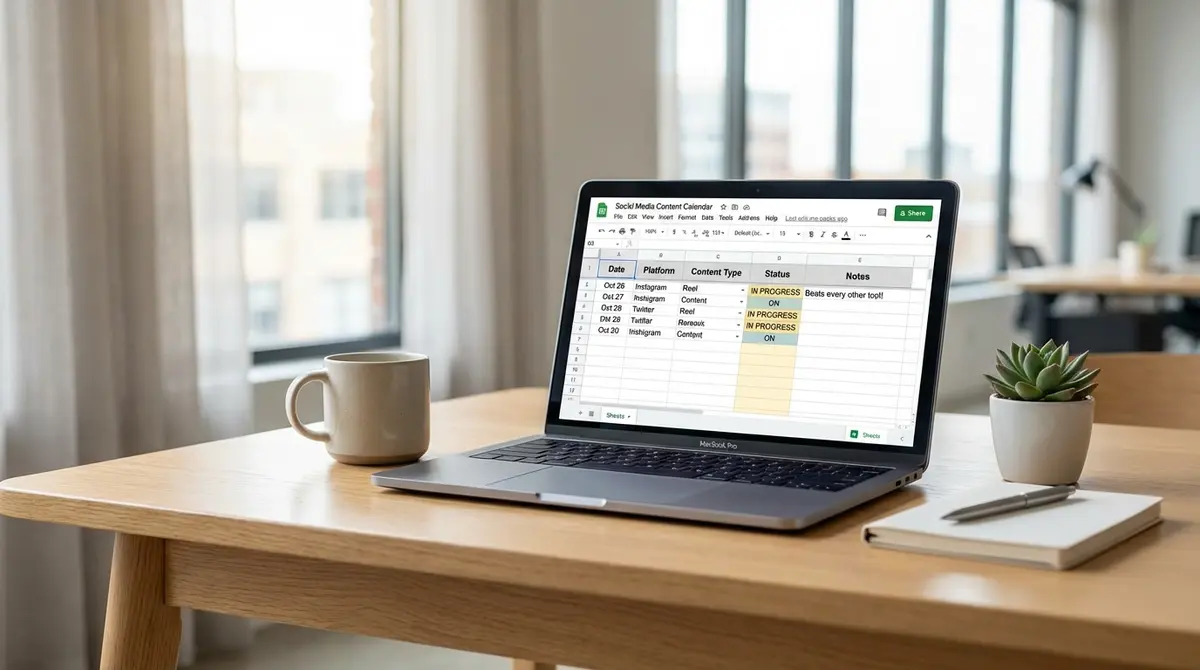
The short answer: A social media content calendar template in Google Sheets is a structured spreadsheet system for planning, tracking, and analyzing posts across multiple platforms without expensive software. The template includes essential columns like publication date, platform, content type, caption, asset links, status, and owner. Top performers focus on multi-platform tab organization, data validation dropdowns, and performance tracking. According to Zapier research, 92% of Fortune 500 companies use Google Sheets for planning.
A social media content calendar template Google Sheets setup is the difference between posting randomly and building momentum that compounds. Most businesses treat social media like a task they remember on Tuesday mornings, scrambling for something to post. That approach burns hours and produces forgettable content. A structured social media content calendar template Google Sheets system lets you plan weeks ahead, track what works, and stop reinventing the wheel every single day. Local seo is worth reading alongside this.
The problem isn't that businesses don't know they need a calendar. It's that most templates sit unused because they're either too complicated or too basic. You download a fancy spreadsheet with 47 columns you'll never fill out, or you get a blank grid that offers zero guidance. This article shows you how to build a social media content calendar template Google Sheets that balances structure with flexibility, one you'll actually open every week.
You'll learn what columns matter, how to organize content by platform and pillar, how to automate repetitive tasks with formulas, and how to track performance without needing a data science degree. If you've been posting inconsistently or paying someone to manage a calendar you can't see inside, this is how you take control.
Why Google Sheets Beats Every Other Calendar Tool
Google Sheets dominates content planning because it's free, collaborative, and infinitely customizable. According to Zapier research from 2024, 92% of Fortune 500 companies use Google Sheets for some form of planning or tracking. That's not because they can't afford enterprise software, it's because Sheets does what expensive tools do without the monthly bill or learning curve.
When you build a social media content calendar template Google Sheets from scratch, you own the structure. You're not locked into someone else's idea of what columns matter. You can add tabs for Instagram, LinkedIn, newsletters, and blog promotion. You can color-code content pillars, insert dropdown menus for post types, and link directly to asset folders. Try doing that in a rigid SaaS tool that charges per user.
Real-Time Collaboration Without Version Chaos
Multiple people can edit a Google Sheets calendar simultaneously without overwriting each other's work. You see changes as they happen. Compare that to emailing Excel files back and forth, where version control becomes a nightmare by the third round trip. A study from Influencer Marketing Hub in 2026 found that 70% of marketing teams reported reduced chaos after switching to version-controlled calendars like Google Sheets.
For small teams or solo operators, this means you can share the calendar with a designer, copywriter, or VA without paying for extra software seats. Everyone works in the same document. No exports, no imports, no "which version is final?" confusion.
Integration and Automation That Scales
Google Sheets connects to thousands of tools through Zapier, Make, and native Google Workspace integrations. You can pull analytics from social platforms into your calendar, trigger notifications when a post goes live, or sync scheduled dates with Google Calendar. A social media content calendar template Google Sheets setup isn't static, it becomes a live dashboard when you layer in automations.
Consider a business that posts six times daily across Instagram, Facebook, and LinkedIn. They use a Google Sheets template with formulas that auto-populate hashtags based on content type and pull engagement metrics from a connected analytics tool. That setup saves 10+ hours per week compared to manual entry. The template does the repetitive work so the team focuses on creating content that performs.
Essential Columns Every Social Media Calendar Needs
A functional social media content calendar template Google Sheets starts with the right columns. Too few and you're guessing. Too many and nobody fills them out. The core structure needs publication date, platform, content type, caption or headline, visual asset link, status, and owner. Everything else is optional until you prove you need it.
| Factor | What it is | Impact |
|---|---|---|
| Column Structure | Publication date, platform, content type, pillar, caption, asset link, status, owner, performance metrics | Prevents chaos; ensures consistent tracking across posts |
| Multi-Platform Tabs | Separate tabs per platform plus master overview aggregating all channels | Eliminates clutter; reveals posting gaps instantly |
| Data Validation & Formulas | Dropdowns for platform/pillar/status; formulas auto-populate and cross-reference data | Saves 10+ hours weekly; enforces consistency |
| Performance Tracking | Post-publish columns: views, likes, comments, shares, clicks | Identifies high-performing formats; guides future content decisions |
Publication date and time are obvious but often mishandled. Don't just write "Monday", use a date format Google Sheets recognizes so you can sort chronologically and filter by week or month. Include time zones if you're posting across regions. Platform matters because Instagram captions behave differently than LinkedIn posts. A dropdown menu with your active platforms (Instagram, Facebook, LinkedIn, TikTok, YouTube, blog) keeps this column consistent. If you want the practical breakdown, Google sheets content is a good next step.
Content Type and Pillar Tracking
Content type describes the format: carousel, video, story, blog link, testimonial, behind-the-scenes. Content pillar describes the theme: educational, promotional, culture, trust-building. Tracking both lets you audit whether you're posting a balanced mix. If 80% of your posts are promotional, you've identified why engagement is flat.
Use data validation to create dropdown menus for these columns. Define your pillars once (education, inspiration, promotion, culture) and select from the list for every post. This prevents inconsistent labeling like "educational" one week and "how-to" the next. Buffer found in 2024 that brands posting a balanced content mix see 3.2x more engagement than those stuck in one mode.
Status, Owner, and Performance Columns
Status tells you where each post stands: idea, draft, scheduled, live, analyzed. Color-code this column with conditional formatting, yellow for drafts, green for scheduled, blue for live. Owner assigns responsibility. If three people touch the calendar, this column prevents "I thought you were handling that" moments.
Performance columns come after publication: views, likes, comments, shares, clicks, conversions. Not every post needs deep analysis, but tracking high-level metrics in your social media content calendar template Google Sheets lets you spot patterns. A post format that consistently drives clicks deserves more slots. A format that gets ignored gets cut.
| Column Name | Purpose | Example Entry |
|---|---|---|
| Publication Date | When the post goes live | 2026-03-15 10:00 AM EST |
| Platform | Where it's published | Instagram, LinkedIn |
| Content Type | Format of the post | Carousel, Video |
| Content Pillar | Thematic category | Educational, Promotional |
| Caption/Headline | Text of the post | 5 ways to reduce customer churn |
| Visual Asset Link | URL to image or video | drive.google.com/file/xyz |
| Status | Current stage | Scheduled, Live |
| Owner | Who's responsible | Sarah, Marketing Team |
| Performance (Engagement) | Post-publish metrics | 327 likes, 42 comments |
How to Structure Tabs for Multi-Platform Posting
A single-tab calendar works if you only post to one platform. Most businesses juggle Instagram, LinkedIn, Facebook, TikTok, and maybe YouTube or a blog. Cramming all platforms into one tab creates a cluttered mess. The fix: use separate tabs for each platform, plus a master overview tab that aggregates everything.
The master tab shows all upcoming posts across platforms in one chronological view. This is where you check for gaps, if Instagram has six posts next week but LinkedIn has zero, you see it immediately. Each platform-specific tab includes columns tailored to that channel. Instagram needs hashtags and first-comment text. LinkedIn needs article links and thought leadership angles. TikTok needs trending audio references.
Platform-Specific Customization
Your social media content calendar template Google Sheets should reflect how each platform actually works. Instagram posts need a primary caption, a first-comment section for hashtags (to keep the main post clean), and tags for collaborators or products. LinkedIn posts need a headline-style hook, a body with line breaks for readability, and optional document or article attachments.
Facebook posts might include event links or fundraiser CTAs. TikTok posts need video length, trending sound IDs, and stitch or duet indicators. YouTube requires video titles, descriptions, tags, and thumbnail file links. Forcing all these variables into one generic tab means you're either skipping important details or scrolling through columns that don't apply. Dedicated tabs keep each platform's workflow clean.
The Master Overview Tab
The master tab pulls key data from each platform tab using formulas like =QUERY or =FILTER. You define what shows up: publication date, platform, content type, status, and owner. This tab answers the question "What's publishing this week?" without opening five separate sheets. It's especially useful for team check-ins or client reviews. Tiktok content essentials is worth reading alongside this.
Set up conditional formatting so overdue posts highlight in red and posts scheduled for the next 48 hours highlight in orange. This visual system makes it impossible to miss deadlines. A reviewer from Social Media Strategies Summit noted in 2024 that daily-view calendars force execution over distant planning, when you see today's slots empty, you act.
Automating Repetitive Tasks with Formulas and Dropdowns
Manual entry kills momentum. If you're typing the same hashtags, CTAs, or content pillars every time, you're wasting hours that could go toward creating better content. A well-built social media content calendar template Google Sheets uses formulas and dropdowns to automate the predictable parts so you focus on the creative decisions.
Start with data validation dropdowns for any column with limited options: platform, content type, content pillar, status, owner. This ensures consistency and speeds up entry. Instead of typing "Instagram" fifty times, you select it from a list. Instead of remembering whether you called something "promotional" or "promo," the dropdown enforces one term.
Auto-Populating Hashtags and CTAs
Create a separate tab called "Hashtag Library" with columns for content type and corresponding hashtags. Use =VLOOKUP or =XLOOKUP in your main calendar to pull hashtags automatically based on the content type you select. If you mark a post as "educational," the formula inserts your pre-approved educational hashtags. Change the content type, and the hashtags update instantly.
Do the same for CTAs. Build a "CTA Library" tab with CTAs for each content pillar: "Swipe up to learn more" for promotional posts, "Tag someone who needs this" for inspirational posts, "Link in bio for the full guide" for educational posts. An Influencer Marketing Hub expert in 2026 described this approach as "transforming static schedules into interactive dashboards", the template does the thinking so you don't have to.
Tracking Performance with Linked Metrics
After a post goes live, you want to track performance without switching between five tools. Use Google Sheets add-ons or Zapier integrations to pull engagement data directly into your calendar. Tools like Supermetrics or Coefficient connect social media analytics to Sheets, populating columns like views, likes, comments, and clicks automatically.
If automation isn't an option yet, create a simple manual entry system: a performance column where you paste the top-line number (total engagement or reach) once a week. Over time, this data shows which content types and pillars perform best. A business posting six times daily saw a 45% reach increase after analyzing their social media content calendar template Google Sheets and doubling down on high-performing formats, according to Smartsheet research from 2023.
Ready to take the next step with Strategyc?
Our team is ready to help you achieve your goals. Get Your Free Scan.
Common Mistakes That Make Calendars Useless
The biggest mistake is building a calendar so detailed that nobody maintains it. You add columns for image dimensions, alt text, approval stages, budget allocation, campaign tags, UTM parameters, and revision history. It looks impressive. It also never gets updated after week two because filling it out takes longer than just posting.
Start simple. Use the core columns: date, platform, content type, caption, asset link, status, owner. Prove you can maintain that for a month. Then add one new column, maybe performance tracking or content pillar. A calendar that gets used beats a perfect calendar that sits abandoned. According to HubSpot research from 2023, 80% of marketers use content calendars to improve efficiency, but the ones who succeed keep their systems lean. If you want the practical breakdown, Marketing a restaurant with is a good next step.
Overplanning Without Execution
Some teams spend hours planning three months of content in one sitting. They fill every slot, write every caption, and feel productive. Then week three hits and half the planned posts feel irrelevant because the business launched a new offer or a competitor made a move. The calendar becomes a guilt trip instead of a tool.
Plan two weeks ahead in detail, four weeks ahead in themes. Your social media content calendar template Google Sheets should have firm dates and captions for the next 10-14 days, and placeholder ideas (content type + pillar) for weeks three and four. This balance gives you direction without locking you into outdated plans. A content strategist at Semrush noted in 2026 that "monthly tabs with custom UTM tracking work best when the first two weeks are execution-ready and the rest is flexible."
Ignoring What the Data Says
You track performance but never act on it. A carousel format consistently gets 3x more engagement than static images, but you keep posting static images because they're faster to make. A promotional post bombs every time, but you keep scheduling them because "we need to sell." The calendar shows you what works, ignoring it wastes the entire system.
Set a monthly review ritual. Pull up your social media content calendar template Google Sheets, filter by the past 30 days, and sort by performance. Identify the top five posts. What do they have in common? Format, pillar, topic, time of day? Do more of that. Identify the bottom five. Stop doing that. This isn't complicated, but most businesses skip the review and wonder why results plateau.
Advanced Features for Teams That Want More Control
Once your basic social media content calendar template Google Sheets runs smoothly, you can layer in advanced features that give larger teams or multi-brand operations more control. These additions aren't necessary for everyone, but they solve specific problems for businesses managing high volumes or complex workflows.
Approval workflows prevent posts from going live without review. Add a column called "Approval Status" with options like "Pending Review," "Approved," "Needs Revision." Use conditional formatting to highlight pending items in yellow. Assign an approver in the "Owner" column. This system works for agencies managing client content or brands with legal compliance requirements.
Budget Allocation and Campaign Tracking
If you're running paid promotions alongside organic posts, add budget columns to your calendar. Track how much you're spending to boost each post or campaign. Over time, this data shows which content types deliver ROI when amplified and which perform fine organically without ad spend.
Campaign tracking ties individual posts to larger initiatives. Add a "Campaign" column with tags like "Q1 Launch," "Holiday Sale," or "Brand Awareness." Filter by campaign to see all related posts across platforms. This view helps you assess whether a campaign had enough content support or if you front-loaded Instagram but ignored LinkedIn. Most free templates skip budget and campaign tracking entirely, but these columns matter if you're managing multiple initiatives simultaneously.
Multi-Site and Cross-Channel Syncing
Businesses with multiple locations or brands need calendars that scale. Create a master Google Sheet with tabs for each location or brand, plus a consolidated overview tab. Use =IMPORTRANGE to pull data from separate calendars into one dashboard. This setup lets each location manage their own calendar while leadership sees everything in one place.
Cross-channel syncing means your social media content calendar template Google Sheets includes tabs for email newsletters, blog posts, and even offline events. A blog post published Monday becomes a LinkedIn article Tuesday, an Instagram carousel Wednesday, and a newsletter feature Friday. Tracking all channels in one calendar prevents duplication and ensures every piece of content gets maximum distribution. SEO checklist is worth reading alongside this.
What Ownership Looks Like
A social media content calendar template Google Sheets is infrastructure you own. You're not renting access to a platform that disappears when you stop paying. You're not dependent on an agency that takes the calendar with them when the contract ends. The file lives in your Google Drive. The process lives in your team's workflow. When you leave or scale, the system stays.
Ownership means you control the data. You see which posts performed, which didn't, and why. You adjust the strategy based on what the calendar shows, not what an agency reports in a monthly PDF. You can hire someone to help fill it out, but the structure and findings belong to you. That's the difference between renting visibility and owning it.
Building a calendar from scratch takes a few hours upfront. Maintaining it takes 30 minutes a week once the system runs. Compare that to paying $1,500-$5,000 per month for an agency to manage posting, a cost that stops producing results the moment you stop paying. Content you publish today still drives traffic in 12 months. A calendar system you build today still works in 12 months. That's compounding.
If content and visibility matter to your business, they should be infrastructure you own, not a service you rent. A social media content calendar template Google Sheets is one piece of that infrastructure. It's not flashy, but it works. And it keeps working long after you set it up.
Frequently Asked Questions
How do I make a copy of a social media content calendar template Google Sheets?
Open the template, click "File" in the top menu, then select "Make a Copy." This creates an editable version in your Google Drive. Rename it, adjust columns to fit your workflow, and start filling it out. Never edit the original template directly.
What columns are essential for tracking social media content?
Start with publication date, platform, content type, caption or headline, visual asset link, status, and owner. Add performance columns (views, engagement) after posts go live. Everything else, hashtags, CTAs, campaigns, can be added once you prove you'll maintain the basics consistently.
Can I integrate performance metrics into my Google Sheets calendar?
Yes. Use add-ons like Supermetrics or Coefficient to pull analytics from social platforms directly into Sheets. Alternatively, connect Google Sheets to analytics tools via Zapier. Manual entry works too, paste key metrics once a week to track trends over time without constant tool-switching.
How do I measure ROI from organic social media content?
Track clicks, conversions, and revenue tied to specific posts using UTM parameters in links. Compare time invested (hours spent creating and posting) against results (leads generated, sales closed). Organic content ROI compounds, a post from six months ago still drives traffic today, unlike paid ads that stop when you stop spending.
Can I build and maintain this system in-house without hiring an agency?
Absolutely. A social media content calendar template Google Sheets requires no technical skills beyond basic spreadsheet use. The hardest part is consistency, posting regularly and reviewing performance monthly. If you can commit 2-3 hours per week to planning and posting, you own the system. Agencies charge $1,500+ monthly for work you can do yourself with the right structure.