Data Studio SEO Dashboard: The Complete Blueprint for Tracking Organic Performance in 2026
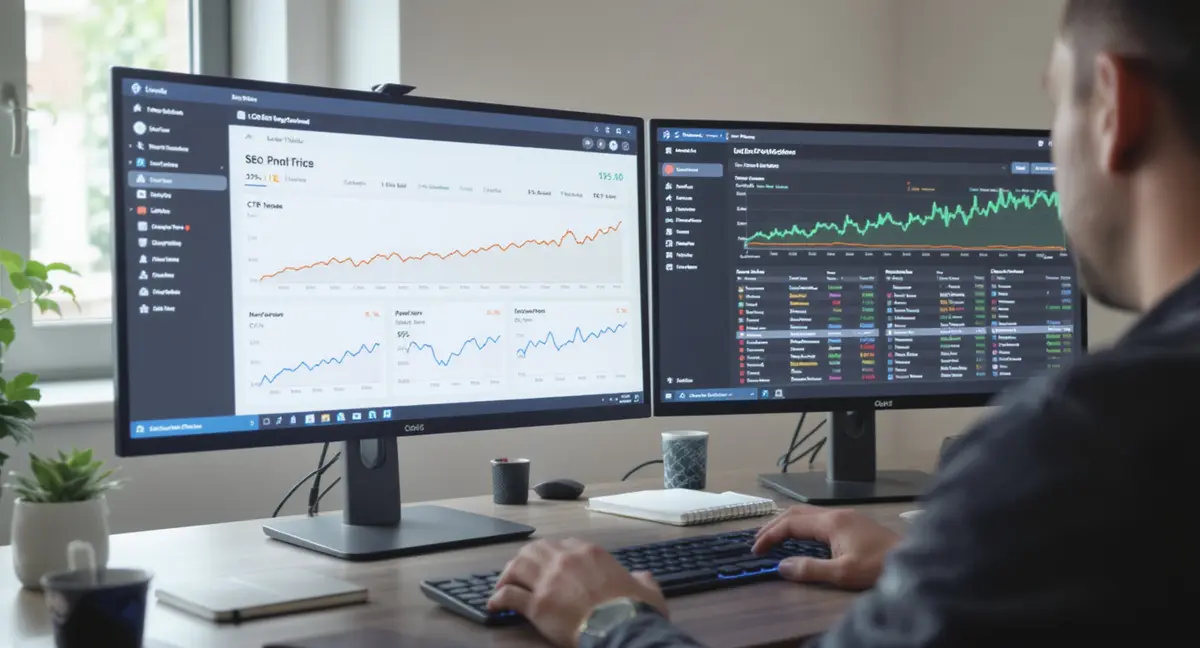
The short answer: Strategyc is a content and visibility system for businesses that need owned SEO infrastructure. The data studio SEO dashboard centralizes clicks, impressions, CTR, position, organic sessions, conversions, and technical health metrics in one visual interface. Success in data studio SEO dashboard comes down to connecting the right data sources, choosing metrics that drive decisions, and building dashboards that surface opportunities. According to Sitebulb's 2024 analysis, teams using segmented SEO dashboards identify performance gaps 3x faster than those relying on native platform interfaces. AI search is reshaping how content gets discovered, which is why businesses are turning to AI search optimization to maintain visibility when traditional rankings no longer guarantee traffic.
Most businesses track SEO performance through scattered tools. Google Search Console shows one set of data. Google Analytics 4 shows another. Technical crawlers show a third. The result is fragmented visibility and slow decision-making. A data studio SEO dashboard solves this by pulling every critical SEO metric into one place.
The data studio SEO dashboard is built in Google Looker Studio, the free reporting platform that replaced Google Data Studio in 2022. Looker Studio connects to Google Search Console, GA4, BigQuery, and third-party SEO tools through native integrations and custom connectors. The result is a live dashboard that updates automatically, shows trends over time, and surfaces the metrics that matter most to organic growth.
This article breaks down how to build a data studio SEO dashboard that tracks visibility, engagement, conversions, and technical health. You will see which metrics to prioritize, how to structure dashboards for different audiences, and how to avoid the performance issues that make most SEO dashboards unusable. The framework applies whether you are building your first dashboard or replacing an agency-controlled reporting system you do not own.
Why SEO Teams Switched to Data Studio SEO Dashboards
Traditional SEO reporting relied on manual exports, spreadsheet formulas, and static PDFs. That worked when organic search was stable and teams reviewed performance monthly. It does not work in 2026. Google's algorithm updates every few weeks. AI search is reshaping how content gets discovered. Businesses need real-time visibility into what is working and what is breaking.
The data studio SEO dashboard replaced legacy reporting because it solves three problems: data fragmentation, reporting lag, and stakeholder communication. Before Looker Studio, SEO teams spent hours each month copying data from Google Search Console into Excel, merging it with GA4 exports, and formatting charts for executives. The process was slow, error-prone, and outdated the moment it was finished.
The Cost of Fragmented SEO Data
When SEO data lives in separate platforms, teams miss connections between metrics. A spike in impressions means nothing without CTR data. A drop in organic sessions means nothing without position tracking. A conversion rate change means nothing without landing page context. According to BrightEdge's 2025 research, 68% of marketing teams cannot connect organic traffic changes to specific content or technical issues because their data is siloed.
The data studio SEO dashboard centralizes this data. One interface shows how impressions, clicks, CTR, position, sessions, engagement, and conversions move together. When organic traffic drops, you see whether the issue is position loss, CTR decline, or indexing problems. When conversions improve, you see which landing pages and queries drove the change. The dashboard turns scattered data into actionable insight.
Fragmentation also creates ownership problems. When an agency controls your reporting, they control your visibility into performance. You see what they choose to show. When the relationship ends, the reporting history often disappears. A data studio SEO dashboard built on your own Google account is infrastructure you own. The data, the dashboards, and the insights stay with you.
Real-Time Visibility vs Monthly Reports
Monthly SEO reports are historical documents. They show what happened last month, not what is happening now. The data studio SEO dashboard updates automatically. Connect it to Google Search Console and GA4, and every metric refreshes daily. You see ranking changes, traffic shifts, and conversion trends as they happen, not four weeks later.
This matters because search is volatile. A technical issue can tank organic traffic in 48 hours. A competitor can outrank your top pages in a week. AI Overviews can replace your featured snippet overnight. According to Search Engine Journal, businesses that monitor SEO performance daily identify and fix issues 5x faster than those relying on monthly reports. The data studio SEO dashboard makes daily monitoring practical.
Real-time data also changes how teams prioritize work. When you see a landing page losing position and CTR simultaneously, you know to investigate immediately. When you see a query driving impressions but zero clicks, you know the title and meta description need rewriting. The dashboard surfaces opportunities and problems the moment they appear, not after they have compounded for weeks.
Core Metrics Every Data Studio SEO Dashboard Must Track
Not all SEO metrics matter equally. Some drive decisions. Others are vanity numbers that look good in reports but do not connect to business outcomes. The data studio SEO dashboard should track four categories: visibility, engagement, conversion, and technical health. Each category answers a specific question about organic performance.
Visibility metrics answer "Are we showing up in search?" Engagement metrics answer "Are searchers clicking and staying?" Conversion metrics answer "Is organic traffic producing business results?" Technical health metrics answer "Is anything blocking our performance?" A complete data studio SEO dashboard tracks all four, segmented so each audience sees the metrics they need.
Visibility Metrics: Impressions, Position, and Coverage
Visibility starts with impressions. This is the number of times your pages appeared in search results, regardless of whether anyone clicked. Impressions show search demand for your target topics. A page with 10,000 impressions and 100 clicks has a 1% CTR. A page with 100 impressions and 10 clicks also has a 1% CTR, but the first page has 100x more opportunity.
Average position shows where your pages rank. Position 1 gets 27.6% of clicks on average, according to Backlinko's 2024 CTR study. Position 10 gets 2.5%. A drop from position 3 to position 7 can cut organic traffic by 60%, even if impressions stay constant. The data studio SEO dashboard should show position trends over time for your top landing pages and queries, so you see ranking changes before they destroy traffic. The dashboard surfaces opportunities and problems the moment they appear, not after they have compounded for weeks, which is why most teams now rely on an SEO monitoring dashboard that tracks performance daily rather than monthly.
Coverage metrics track indexing health. Google Search Console reports pages that are indexed, excluded, or blocked. A sudden drop in indexed pages signals a technical issue. The data studio SEO dashboard should include a scorecard showing total indexed pages, with trend lines to catch drops immediately. Many businesses discover indexing problems weeks after they start because they do not monitor coverage daily.
Engagement Metrics: CTR, Sessions, and Behavior
Click-through rate is the percentage of impressions that produce clicks. High CTR means your titles and meta descriptions are compelling. Low CTR means searchers see your page but choose competitors instead. According to DemandSage's 2025 research, the average CTR for position 1 is 27.6%, but this varies by query type. Branded queries often exceed 50% CTR. Informational queries may sit at 15%. The data studio SEO dashboard should show CTR by query and landing page, so you know which titles need rewriting.
Organic sessions measure how many users visit your site from search. This is different from clicks in Google Search Console. GSC counts clicks on search results. GA4 counts sessions that start from organic search, which may include multiple page views. The data studio SEO dashboard should show both metrics side by side, because discrepancies reveal tracking issues or bot traffic.
Engagement rate and average session duration show whether visitors find your content useful. A page with 10,000 sessions but a 10-second average duration is not converting searchers into readers. According to Sitebulb's 2024 dashboard guide, engagement rate is a better metric than bounce rate in GA4 because it measures active interaction rather than single-page visits. The data studio SEO dashboard should track engagement rate by landing page, segmented by traffic source, so you see which organic pages hold attention.
Essential Data Sources for a Robust SEO Dashboard
The data studio SEO dashboard pulls from multiple sources. Google Search Console provides query and page performance data. Google Analytics 4 provides session, engagement, and conversion data. Technical crawlers like Sitebulb provide site health data. BigQuery stores historical data beyond the 16-month limit in GSC and GA4. Each source answers different questions.
Google Search Console is the foundation. It shows which queries trigger your pages, how often they appear, what position they hold, and how many clicks they receive. GSC data is the only way to see search performance at the query level. The data studio SEO dashboard connects to GSC through a native connector, pulling clicks, impressions, CTR, and position data automatically.
Connecting Google Search Console to Looker Studio
The GSC connector in Looker Studio is free and native. Open a new Looker Studio report, select "Create," choose "Data Source," and search for "Search Console." You will authenticate with your Google account and select the property you want to track. The connector pulls data at the site, page, query, and device level.
One limitation: GSC stores only 16 months of data. If you need year-over-year comparisons beyond 16 months, export GSC data to BigQuery monthly. The data studio SEO dashboard can then pull from BigQuery for historical analysis and GSC for recent performance. This hybrid approach gives you unlimited historical data without losing real-time visibility.
When building your data studio SEO dashboard, create separate data sources for site-level metrics and page-level metrics. Site-level shows overall impressions, clicks, CTR, and position. Page-level shows which landing pages drive performance. Mixing them in one table creates aggregation errors. According to Authoritas's 2024 Looker Studio guide, segmenting data sources by dimension prevents the "data mismatch" errors that break most beginner dashboards.
Integrating Google Analytics 4 for Conversion Tracking
Google Analytics 4 tracks what happens after the click. GSC shows search performance. GA4 shows session behavior, engagement, and conversions. The data studio SEO dashboard needs both. A page with high clicks but low conversions signals a content or UX problem. A page with low clicks but high conversion rate signals an opportunity to improve visibility.
The GA4 connector in Looker Studio is also native and free. Add it as a data source, authenticate, and select your GA4 property. The connector pulls sessions, users, engagement rate, average session duration, and conversion events. You can filter by traffic source to isolate organic performance.
Set up custom conversions in GA4 before building your data studio SEO dashboard. Default events like "page_view" and "session_start" do not show business outcomes. Create events for form submissions, purchases, demo requests, or whatever action defines success for your business. The data studio SEO dashboard should show organic sessions alongside conversion rate and total conversions, so you see whether traffic quality is improving or declining.
Building Your First Data Studio SEO Dashboard: Step-by-Step
The simplest data studio SEO dashboard has three sections: visibility, engagement, and conversions. Each section uses scorecards at the top to show key metrics, followed by tables and charts that break down performance by page, query, or time period. This structure works for monthly stakeholder reporting and daily performance monitoring.
Start with scorecards. These are the large numbers at the top of the dashboard that show total clicks, impressions, average CTR, and average position. Scorecards give executives the summary view they need without scrolling. According to Sitebulb's 2024 guide, dashboards with scorecards at the top get reviewed 40% more often than dashboards that bury key metrics in tables. When the relationship ends, the reporting history often disappears, which is why ownership matters when evaluating SEO dashboard software for your business.
Setting Up Scorecards and Key Performance Indicators
Create four scorecards for visibility: Total Clicks, Total Impressions, Average CTR, and Average Position. Pull these from your Google Search Console data source. Set the date range to "Last 28 days" with a comparison to the previous 28 days. The scorecard will show the current number and the percentage change, so you see trends at a glance.
Add three scorecards for engagement: Organic Sessions, Engagement Rate, and Average Session Duration. Pull these from your GA4 data source, filtered to organic traffic only. Set the same date range and comparison. Now you have seven scorecards showing search visibility and on-site engagement side by side.
The final scorecard is conversions. Pull this from GA4, filtered to organic traffic, using your custom conversion event. Show total conversions and conversion rate. This is the metric that connects SEO performance to business outcomes. A data studio SEO dashboard without conversion tracking is just a vanity report. You need to see whether organic traffic is producing leads, sales, or signups.
Adding Tables for Page and Query Performance
Below the scorecards, add two tables: one for top landing pages and one for top queries. The landing page table should show Page, Clicks, Impressions, CTR, and Average Position. Sort by clicks descending. This shows which pages drive the most organic traffic. Set pagination to 20 rows to avoid browser performance issues.
The query table should show Query, Clicks, Impressions, CTR, and Average Position. Sort by impressions descending. This surfaces high-opportunity queries where you rank but do not get clicks. A query with 5,000 impressions, position 8, and 1% CTR is a candidate for content improvement or title rewrite. Move it to position 3, and CTR could jump to 10%, adding 500 clicks per month.
According to Authoritas's research, tables in the data studio SEO dashboard should always include CTR and position together. Clicks alone do not show opportunity. A page with 100 clicks from position 15 has more upside than a page with 500 clicks from position 1. The first page could 5x traffic by improving position. The second page is already optimized.
Advanced Data Studio SEO Dashboard Techniques
Once you have the basic data studio SEO dashboard running, add segmentation, filters, and custom metrics. Segmentation shows performance by device, country, or date range. Filters let users drill into specific landing pages or query types. Custom metrics combine data from multiple sources to calculate metrics like "clicks per indexed page" or "conversion rate by landing page."
Device segmentation is critical because mobile and desktop performance often diverge. A page ranking position 3 on desktop may rank position 12 on mobile. If 70% of your traffic is mobile, the desktop ranking is irrelevant. The data studio SEO dashboard should include a device filter at the top, so users can toggle between desktop, mobile, and tablet views.
Using Filters and Segments to Surface Insights
Add a date range control to the top of your data studio SEO dashboard. This lets users compare any two periods. Default to "Last 28 days vs Previous 28 days," but allow custom ranges. When Google rolls out an algorithm update, you want to compare the week before and after, not arbitrary monthly periods.
Create a landing page filter using a dropdown control. Connect it to your landing page table. Now users can select a specific page and see all queries driving traffic to it, along with impressions, clicks, CTR, and position for each query. This is how you diagnose why a page is losing traffic. If one high-volume query dropped from position 2 to position 9, you know where to focus.
Segment organic traffic by new vs returning users. Pull this from GA4. New users show acquisition performance. Returning users show content quality and brand strength. A site with 90% new users and 10% returning users is attracting searchers but not converting them into repeat visitors. The data studio SEO dashboard should show this split, along with engagement rate and conversion rate for each segment.
Blending Data Sources for Unified Reporting
Looker Studio's "data blending" feature combines metrics from different sources into one table. This is how you show GSC clicks alongside GA4 conversions in the same row. Create a blended data source using "Landing Page" as the join key. Pull clicks, impressions, CTR, and position from GSC. Pull sessions, engagement rate, and conversions from GA4.
The result is a table showing which landing pages drive search visibility AND business outcomes. A page with 10,000 clicks and zero conversions needs a UX audit or content revision. A page with 500 clicks and 50 conversions is a high-performer worth promoting. According to Sitebulb's guide, blended tables in the data studio SEO dashboard reduce reporting time by 60% because stakeholders see the full funnel in one view.
One caution: blended data can produce row mismatches if the join key does not align perfectly. GSC uses the full URL. GA4 may strip query parameters. Before blending, create calculated fields that standardize the landing page URL format in both data sources. This prevents the "no data" errors that break most blended reports.
See How Your Business Shows Up in AI Search
Get a free AI visibility scan. See exactly where you rank on ChatGPT, Perplexity, and Google AI, and what to do about it. Get Your Free Scan. A complete data studio SEO dashboard tracks all four categories, segmented so each audience sees the metrics they need, similar to how an effective SEO marketing dashboard aligns performance data with business outcomes.
Technical SEO Metrics to Include in Your Dashboard
Visibility and engagement metrics show performance. Technical metrics show health. A data studio SEO dashboard without technical tracking is blind to crawl errors, indexing issues, Core Web Vitals problems, and mobile usability failures. These issues kill organic performance before they show up in clicks or sessions.
Google Search Console provides basic technical data: coverage status, mobile usability errors, and Core Web Vitals. For deeper analysis, connect a technical crawler like Sitebulb, technical SEO crawler, or website intelligence platform. These tools export crawl data to BigQuery or Google Sheets, which Looker Studio can pull into the data studio SEO dashboard.
Tracking Core Web Vitals and Page Experience
Core Web Vitals are confirmed ranking factors. Largest Contentful Paint (LCP) measures load speed. Interaction to Next Paint (INP) measures responsiveness. Cumulative Layout Shift (CLS) measures visual stability. Google Search Console shows CWV data at the URL level, categorized as "Good," "Needs Improvement," or "Poor."
The data studio SEO dashboard should include a scorecard showing the percentage of URLs passing Core Web Vitals. According to Google's 2024 research, sites with 75% or more URLs in "Good" status see a 15-20% ranking boost on mobile compared to sites with 25% or less. Track this metric weekly. A sudden drop signals a site speed regression or third-party script issue.
Add a table showing the worst-performing URLs by CWV. Pull this from GSC's Page Experience report. Show URL, LCP, INP, CLS, and the number of impressions the URL receives. Prioritize fixing pages with poor CWV AND high impressions. A slow page with 10 impressions per month is not worth optimizing. A slow page with 10,000 impressions per month is costing you rankings and traffic.
Monitoring Indexing and Coverage Issues
Indexing problems are silent killers. Google may exclude pages for duplicate content, thin content, noindex tags, or crawl budget limits. The data studio SEO dashboard should track total indexed pages, total excluded pages, and error pages over time. A spike in excluded pages signals a technical issue that needs immediate investigation.
Create a line chart showing indexed vs excluded pages by week. Pull this from GSC's Coverage report. When indexed pages drop and excluded pages rise, drill into the exclusion reasons. Common causes include accidental noindex tags, canonicalization errors, or server errors. According to Authoritas's research, businesses that monitor indexing daily catch and fix coverage issues 10x faster than those relying on monthly audits.
Add a table showing specific URLs with errors or warnings. Include the URL, issue type (e.g., "Redirect error," "Server error 5xx"), and the number of times Google encountered the issue. This table turns abstract coverage data into actionable tasks. You know exactly which URLs need fixing and why.
Avoiding Common Data Studio SEO Dashboard Mistakes
Most data studio SEO dashboards fail because they try to show everything. The result is a slow-loading report with 50 charts, 10 tables, and no clear narrative. Stakeholders do not know what to look at. The browser crashes when filtering data. The dashboard becomes a graveyard of unused reports.
The best data studio SEO dashboard is focused. It answers 3-5 specific questions: Are we visible in search? Are searchers clicking? Are visitors converting? Is anything broken? Each question gets one section with 2-4 visualizations. The entire dashboard fits on 2-3 pages, not 10.
Performance Optimization for Large Datasets
Looker Studio slows down when tables show more than 100 rows or charts pull more than 10,000 data points. The data studio SEO dashboard should use pagination, filters, and aggregation to limit data volume. Set tables to 20 rows per page. Use date range controls to limit queries to 90 days instead of all-time. Pre-aggregate data in BigQuery before pulling it into Looker Studio.
According to Sitebulb's performance guide, dashboards that pull raw GSC data for every query and page often time out or crash. The solution is to create summary tables in BigQuery that roll up data by week or month. The data studio SEO dashboard pulls from these summary tables, not raw GSC exports. Load time drops from 30 seconds to 3 seconds.
Avoid calculated fields that run complex logic on every row. If you need to calculate "clicks per indexed page," do the calculation in BigQuery and import the result. Calculated fields in Looker Studio recalculate every time the dashboard refreshes, which slows performance. Pre-calculated metrics in BigQuery run once and cache the result.
Structuring Dashboards for Different Audiences
Executives need scorecards and trend lines. SEO managers need tables and drill-down filters. Content teams need page-level performance by topic. The data studio SEO dashboard should use multiple pages to serve each audience. Page 1 is the executive summary. Page 2 is the detailed performance view. Page 3 is the technical health view.
Use Looker Studio's "page navigation" feature to create a menu at the top of the dashboard. Label pages clearly: "Overview," "Content Performance," "Technical Health." This structure prevents the single-page overload problem. Each audience gets the metrics they need without scrolling through irrelevant data.
Share different versions of the data studio SEO dashboard with different teams. The executive version has view-only access and shows high-level scorecards. The SEO manager version has edit access and shows granular tables. The content team version filters to specific landing pages or topics. According to Authoritas's research, segmented dashboards get used 3x more often than one-size-fits-all reports. The dashboard surfaces opportunities and problems the moment they appear, not after they have compounded for weeks, which is why most teams now rely on an SEO monitoring dashboard that tracks performance daily rather than monthly.
Automating Reports and Maintaining Your Dashboard
The data studio SEO dashboard updates automatically when connected to live data sources. But automated updates are not enough. You need scheduled reports, anomaly detection, and regular maintenance to keep the dashboard useful. Without these, the dashboard becomes stale, inaccurate, or ignored.
Looker Studio's email scheduling feature sends PDF or link-based reports on a recurring schedule. Set up weekly reports for SEO managers and monthly reports for executives. The report includes a snapshot of the current dashboard, so recipients see key metrics without logging in. According to BrightEdge's 2025 research, teams that receive scheduled reports review SEO performance 50% more often than teams that must manually open dashboards.
Setting Up Alerts for Performance Changes
Looker Studio does not have native alerting, but you can build alerts using Google Sheets and Apps Script. Export key metrics from the data studio SEO dashboard to a Google Sheet daily. Write a script that checks for threshold violations (e.g., clicks drop more than 20% week-over-week) and sends an email alert.
Common alert triggers: indexed pages drop by more than 10%, average position drops by more than 2 spots, organic sessions drop by more than 25%, Core Web Vitals "Good" percentage drops below 75%. These signals indicate technical issues, ranking losses, or traffic anomalies that need immediate investigation.
Manual checks are not enough. Businesses that rely on weekly dashboard reviews often miss critical issues for days. Automated alerts surface problems within 24 hours. According to Search Engine Journal, businesses with automated SEO alerts fix technical issues 5x faster than those relying on manual monitoring.
Quarterly Dashboard Audits and Updates
The data studio SEO dashboard needs quarterly maintenance. Data sources change. Metrics become irrelevant. New priorities emerge. Set a recurring calendar event to audit the dashboard every 90 days. Check for broken data connections, outdated filters, and unused charts. Remove anything that has not been viewed in 60 days.
Update the dashboard when Google changes reporting. In 2023, Google replaced Universal Analytics with GA4. Dashboards pulling from UA stopped working. In 2024, Google updated Core Web Vitals to replace FID with INP. Dashboards tracking FID became outdated. Quarterly audits catch these changes before they break reporting.
Review the metrics you track. Are they still connected to business goals? If your priority shifted from traffic growth to conversion rate, the data studio SEO dashboard should emphasize conversion metrics over click metrics. If AI search is now driving 30% of your organic traffic, add Perplexity and ChatGPT tracking. The dashboard should evolve with your strategy.
The Bottom Line on Data Studio SEO Dashboards
The data studio SEO dashboard centralizes organic performance data in one live interface. It replaces fragmented reporting, manual exports, and static PDFs with real-time visibility into clicks, impressions, CTR, position, sessions, engagement, conversions, and technical health. Teams that build and maintain a focused data studio SEO dashboard identify performance issues faster, prioritize work more effectively, and connect SEO activity to business outcomes.
Start simple. Build a dashboard with scorecards for key metrics, tables for top pages and queries, and filters for device and date range. Connect Google Search Console and Google Analytics 4 as your foundational data sources. Add technical metrics from GSC's Coverage and Core Web Vitals reports. Once the basic dashboard is running, layer in segmentation, blended data sources, and automated alerts.
The best data studio SEO dashboard is one you own. It runs on your Google account, pulls from your data sources, and stays with you when agency relationships end. Platforms like Strategyc take this approach by installing owned content and visibility systems rather than offering monthly retainers. Whether you build the dashboard yourself or work with a partner, the infrastructure should be yours.
Frequently Asked Questions
What is a data studio SEO dashboard?
A data studio SEO dashboard is a visual reporting interface built in Google Looker Studio that centralizes SEO performance data from Google Search Console, Google Analytics 4, and technical crawlers. It shows clicks, impressions, CTR, position, sessions, conversions, and site health metrics in one live dashboard.
How do I connect Google Search Console to Looker Studio?
Open Looker Studio, select "Create," choose "Data Source," and search for "Search Console." Authenticate with your Google account and select the property you want to track. The native connector pulls clicks, impressions, CTR, and position data automatically.
Can I build a data studio SEO dashboard in-house?
Yes. Looker Studio is free, and the connectors for Google Search Console and GA4 are native. Building a basic dashboard takes 2-4 hours. Advanced features like blended data sources, BigQuery integration, and automated alerts require technical knowledge but are achievable with documentation and practice.
What metrics should every SEO dashboard track?
Track visibility metrics (impressions, position, indexed pages), engagement metrics (CTR, sessions, engagement rate), conversion metrics (conversion rate, total conversions), and technical health metrics (Core Web Vitals, coverage errors, mobile usability). These four categories show whether your site is visible, clickable, valuable, and technically sound.
How often should I update my data studio SEO dashboard?
The dashboard updates automatically when connected to live data sources. Review it daily for performance monitoring and weekly for trend analysis. Conduct a full audit quarterly to remove outdated metrics, fix broken data connections, and align the dashboard with current business priorities.